

Required
- 1 virtual networks
- 1 Scale Set
- 2 subnets
- HTTP server running on both VMs
TCP/IP addressing table
| Subnet name | IPv4 range |
|---|---|
| BLUEVNET Virtual Machines subnet range | 172.16.100.0/24 |
| BLUEVNET Application Gateway subnet range | 172.16.200.0/24 |
| Node | IPv4 Address |
|---|---|
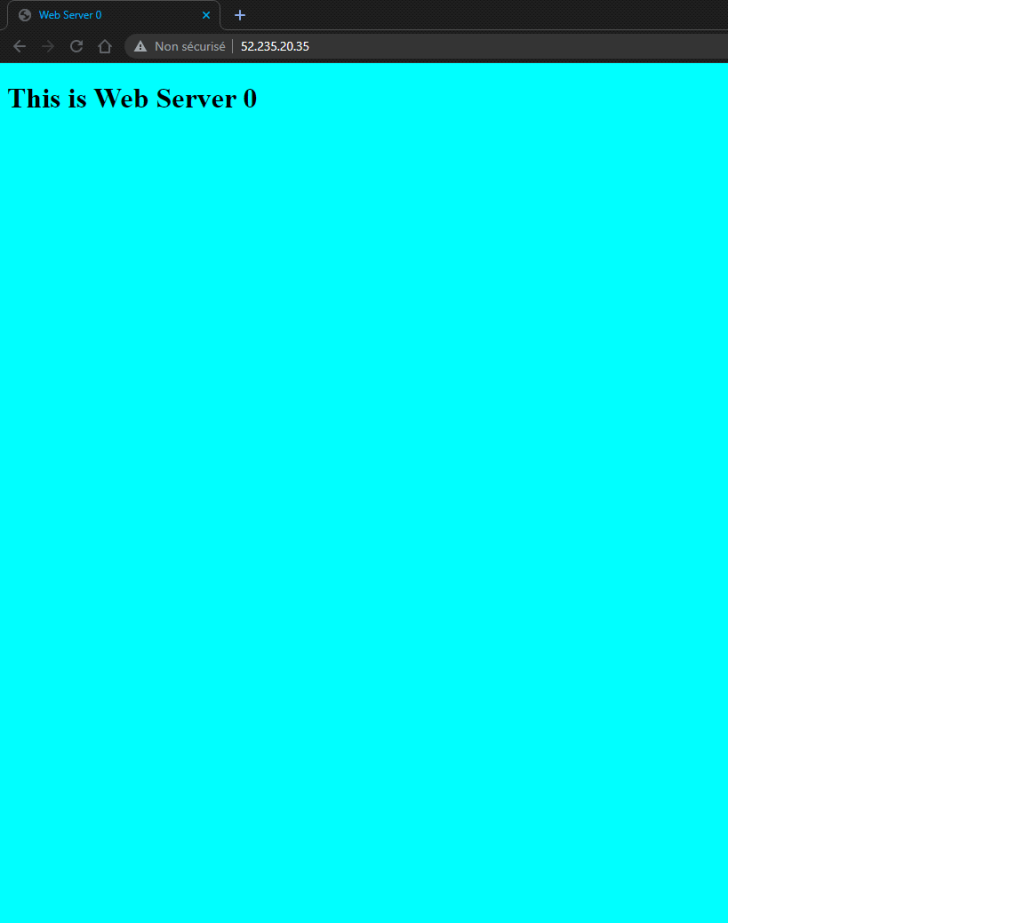
| WEB-SERVER 0 | LAN 172.16.100.4/24 WAN 52.235.20.35 |
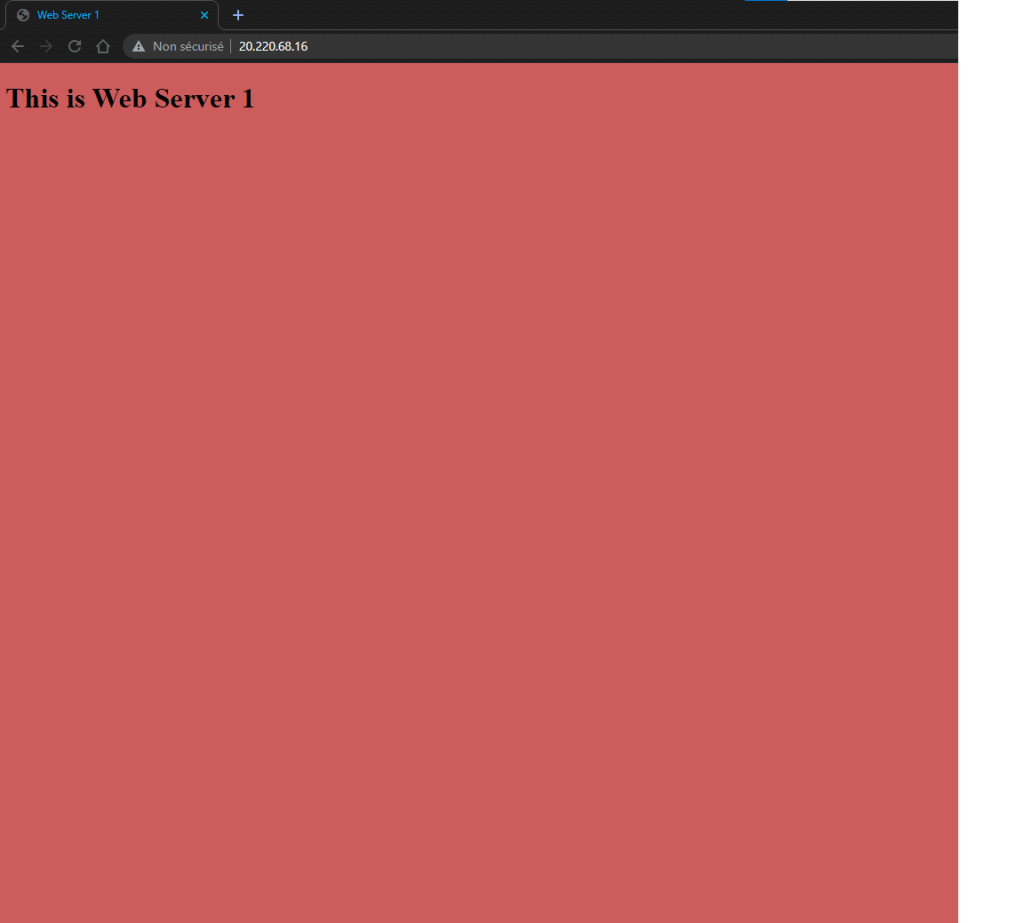
| WEB-SERVER 1 | LAN 172.16.100.5/24 WAN 20.220.68.16 |
| APPGW | LAN 172.16.200.10/24 WAN 52.229.110.179 |
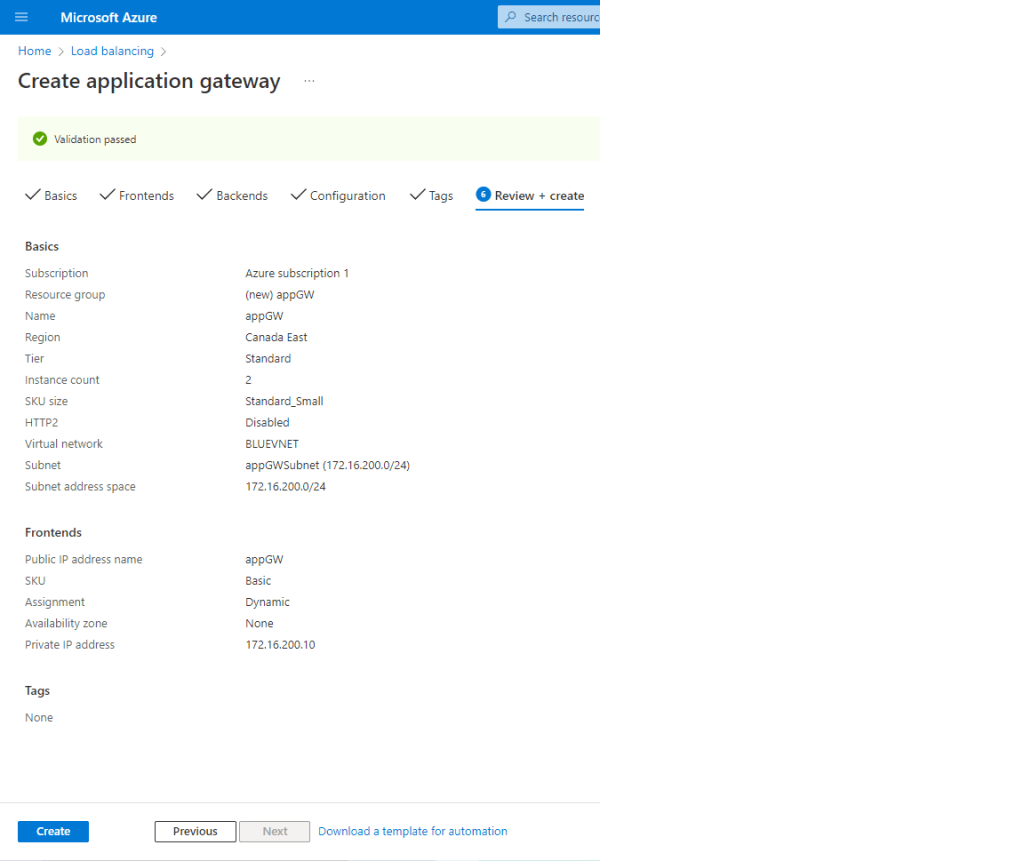
- Create the APP. GW. from the portal.azure.com
- Search for Application Gateways and select Create
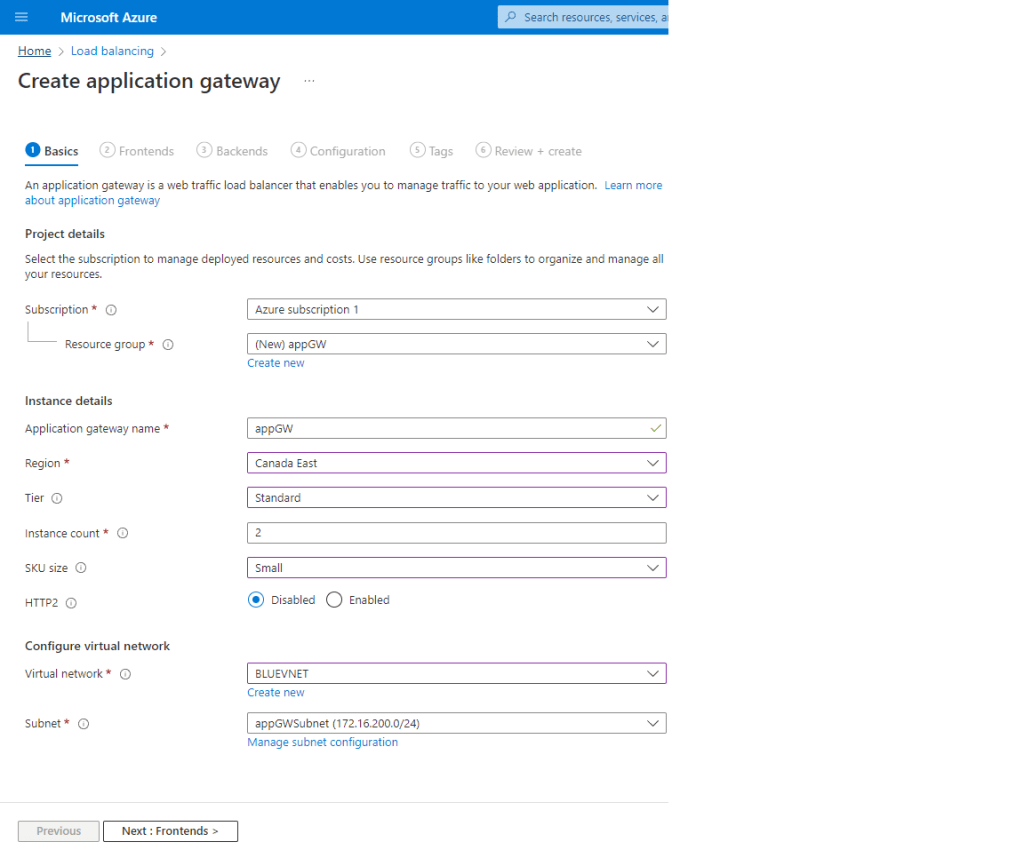
- On the Basics page configure the following info , and hit Next ;
- Subscription
- Ressource group
- Virtual Network
- Subnet
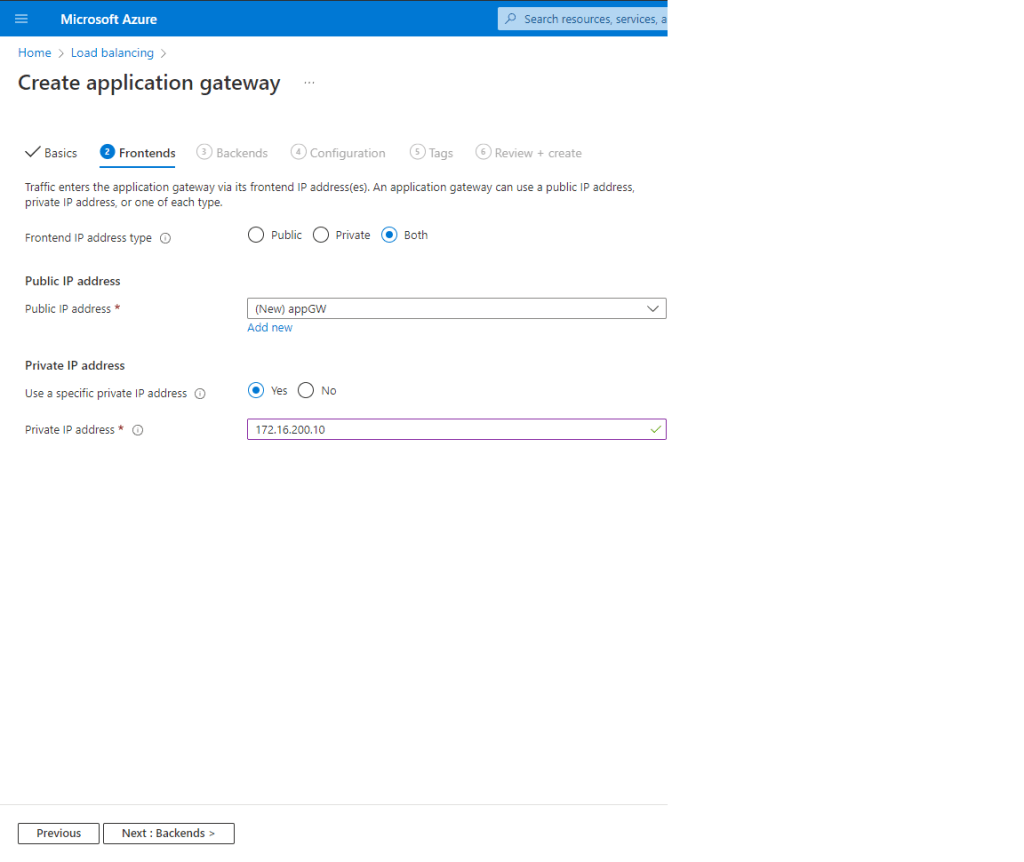
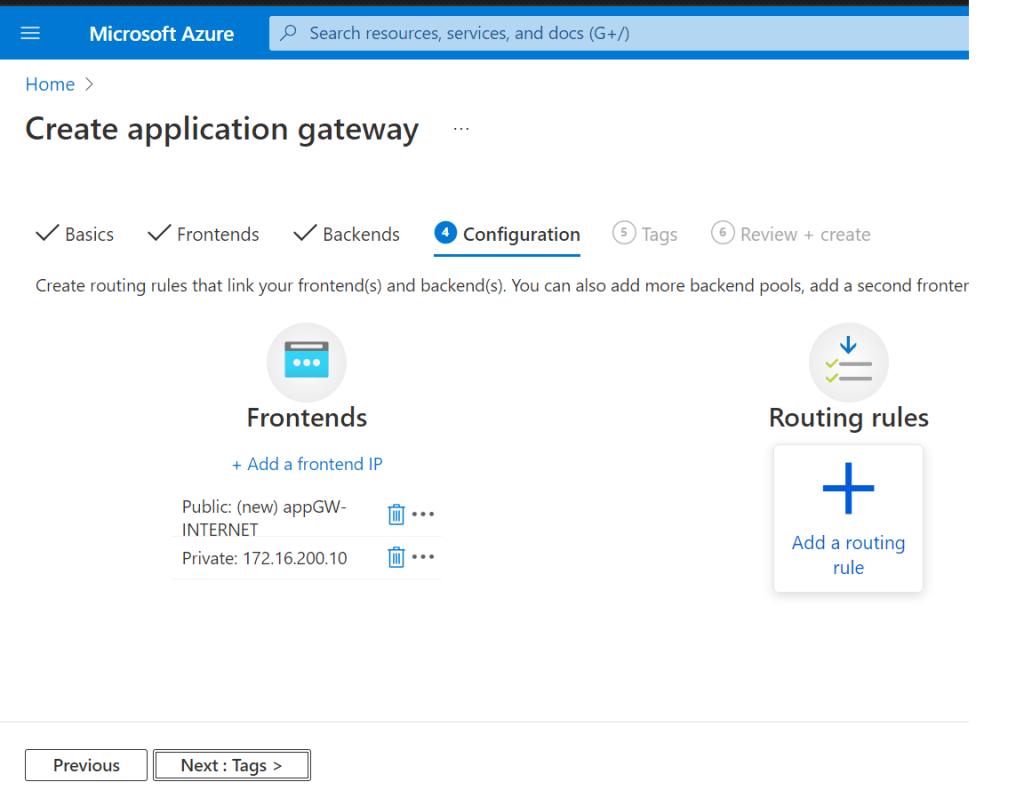
- On the Frontend page configure the following info, and hit Next
- Frontend IP address type
- Public IP address
- Select Yes on Use a private IP address
- Input the application gateway static Virtual Network IP address
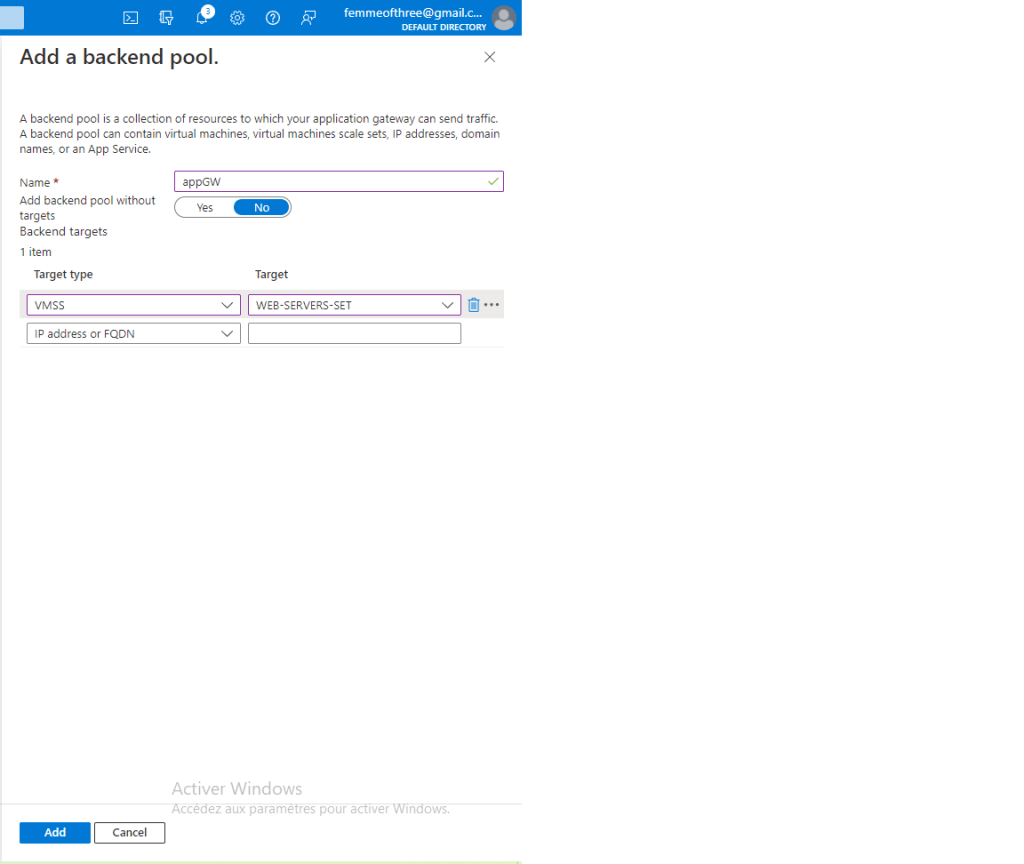
- On the Backend page click Add backend pool and configure the following info and hit Next
- Name
- Add VMSS Select your VMSS target
- Click on the Add routing rule plus sign and configure the following info and hit Next
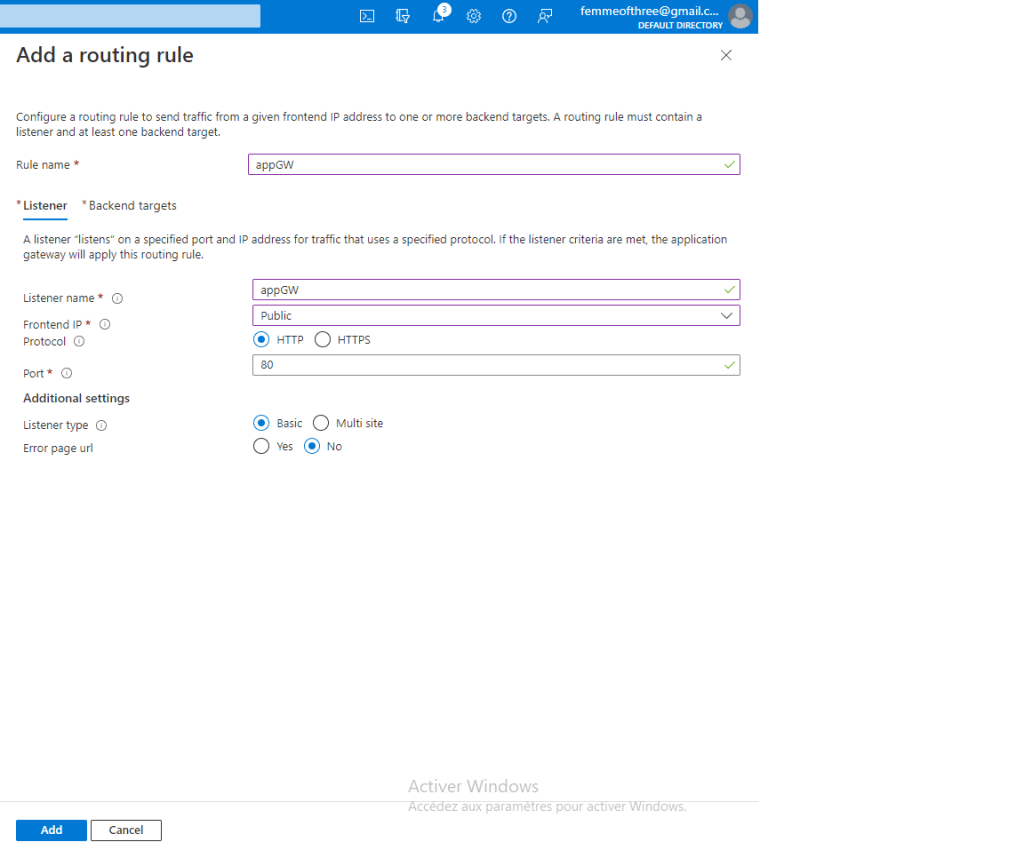
- On the Listener page configure the following info
- Name
- Listener Name
- Frontend IP
- Protocol
- Port
- Listener Type
- Error page url
- Single Site
- No URL path-based routing
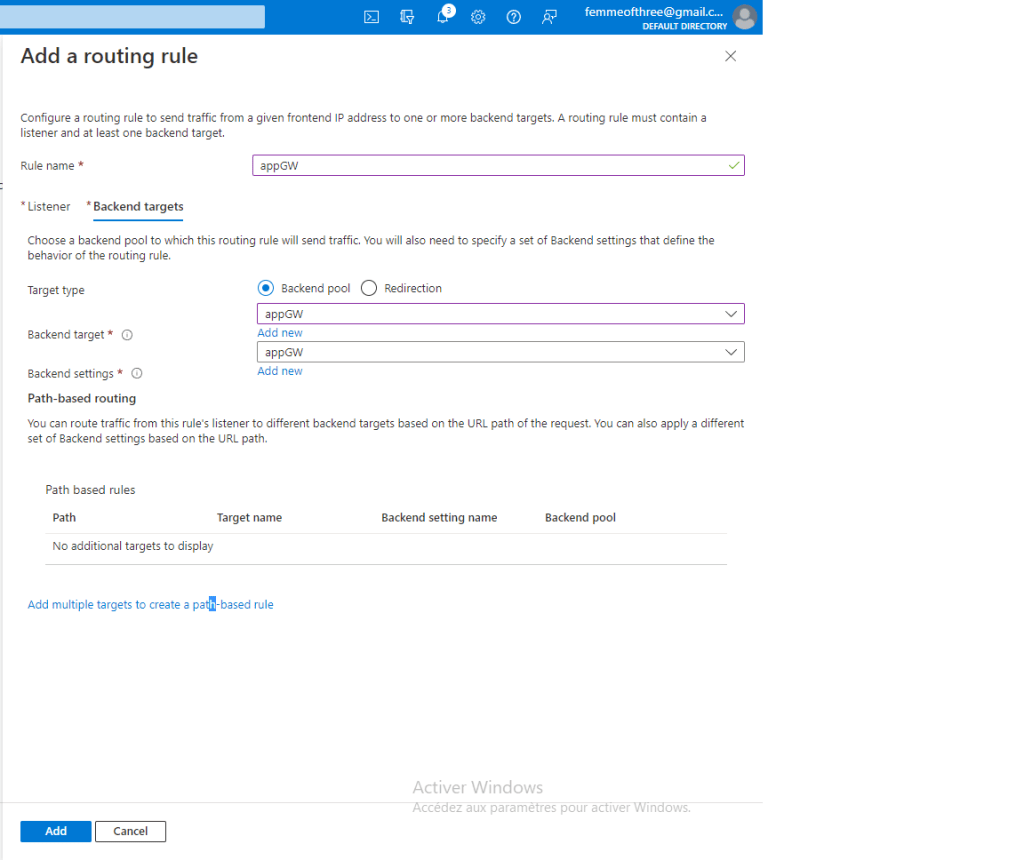
- On the Backend targets page configure the following info
- Backend type pool
- Backend target click on Add New under Backend Setting
- Name your backend settings and leave defaults click Add
- On the Listener page configure the following info
- Review and create
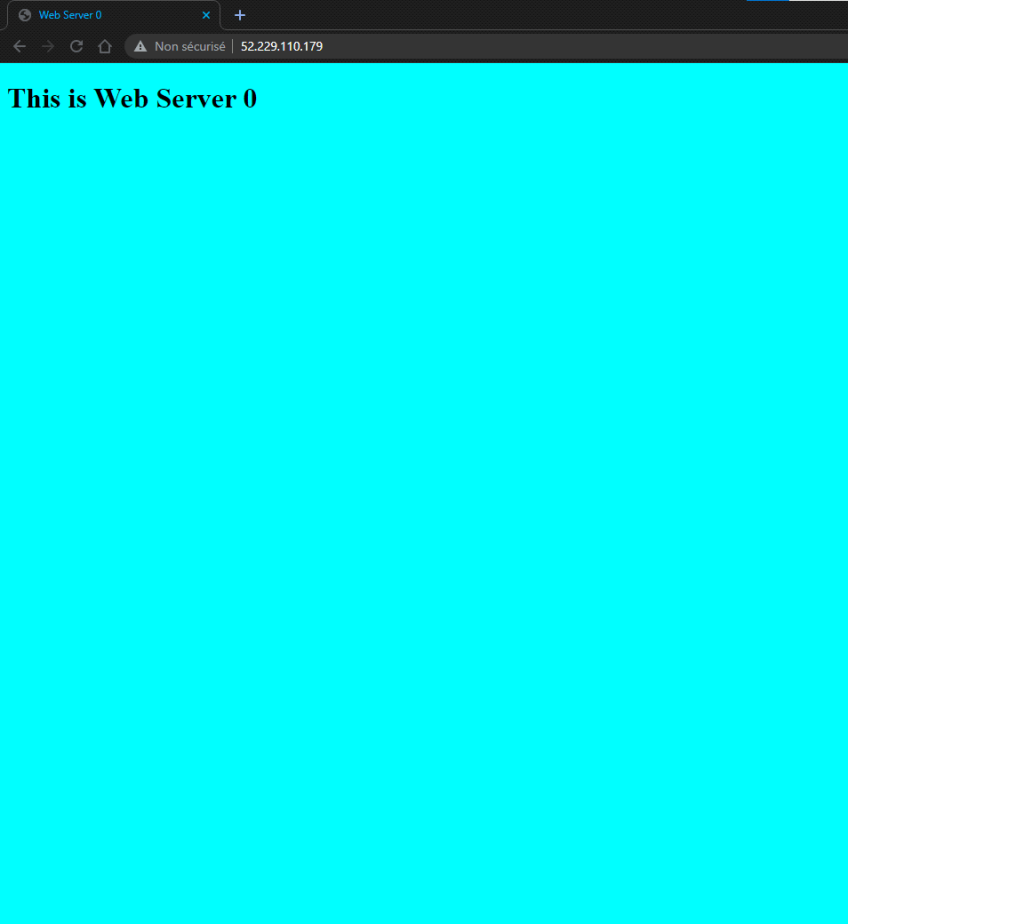
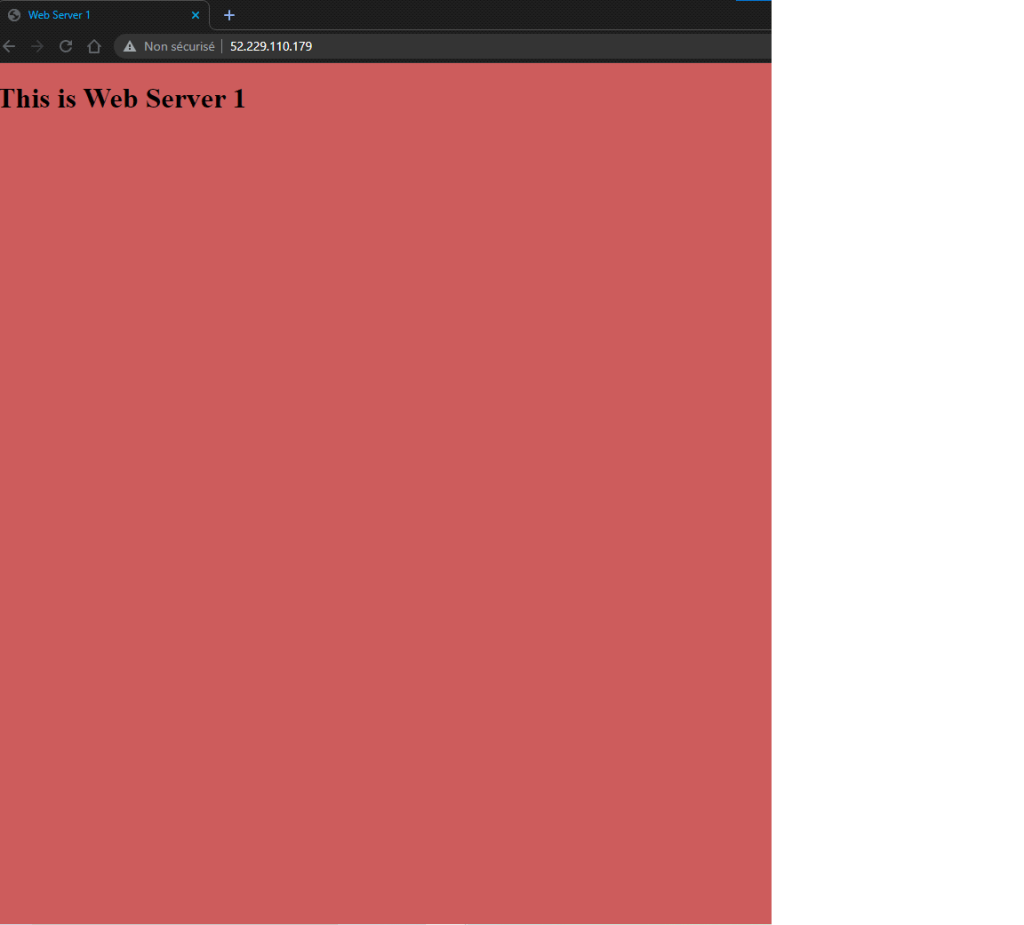
You can now access both web servers from the Application Gateway Public URL. Try turning off one of them and see ! By default it uses round-robin when both are running.

 Alpha M.